Each one stands alone — start with whichever problem is loudest today.
Chats Inbox
Every conversation, in one place
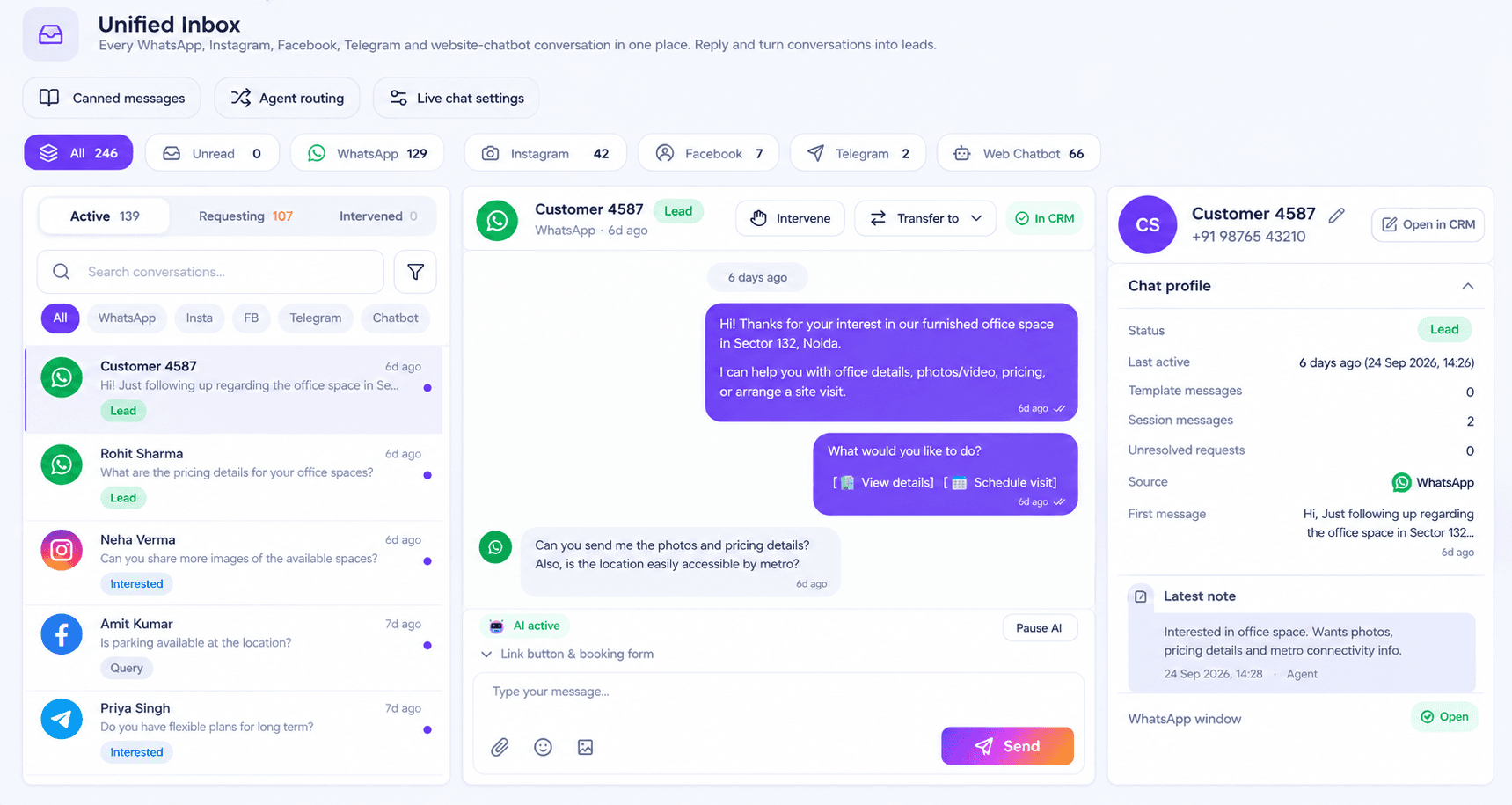
WhatsApp, Instagram, Facebook and your website chat land in a single inbox your whole team can answer from. Start here — most of the other modules feed into it.
1
Connect WhatsApp
Settings → WhatsApp. Use the sign-up popup if you have a WhatsApp Business account, or paste a Phone Number ID and token. Send yourself a test message before going further.
2
Add your team
Team & Agents. Each agent gets their own login and sees the chats you allow. Managers see everything; agents can be limited to the campaigns they run.
3
Set working hours
Inbox → Live Chat Settings. This decides whether a customer gets your welcome message or the off-hours one. The time zone comes from your business profile.
4
Decide who gets what
Inbox → Agent Routing. Chats that need a human are assigned automatically — round-robin, least busy, or longest idle — instead of sitting unclaimed.
Chats Inbox — the conversation list with the reply panel open
Broadcasts, templates and a chatbot that qualifies
Everything that happens on WhatsApp without you typing: approved templates, scheduled broadcasts to a segment, and a flow-builder chatbot that answers the questions you get every day.
1
Get a template approved
WhatsApp Templates → New. Meta approves marketing templates in minutes to hours. Write the variables as {{1}}, {{2}} — the campaign builder maps them to each contact.
2
Set a delivery window
On the template, optionally set how long WhatsApp keeps trying. An OTP that arrives an hour late is worse than one that never arrives.
3
Send your first broadcast
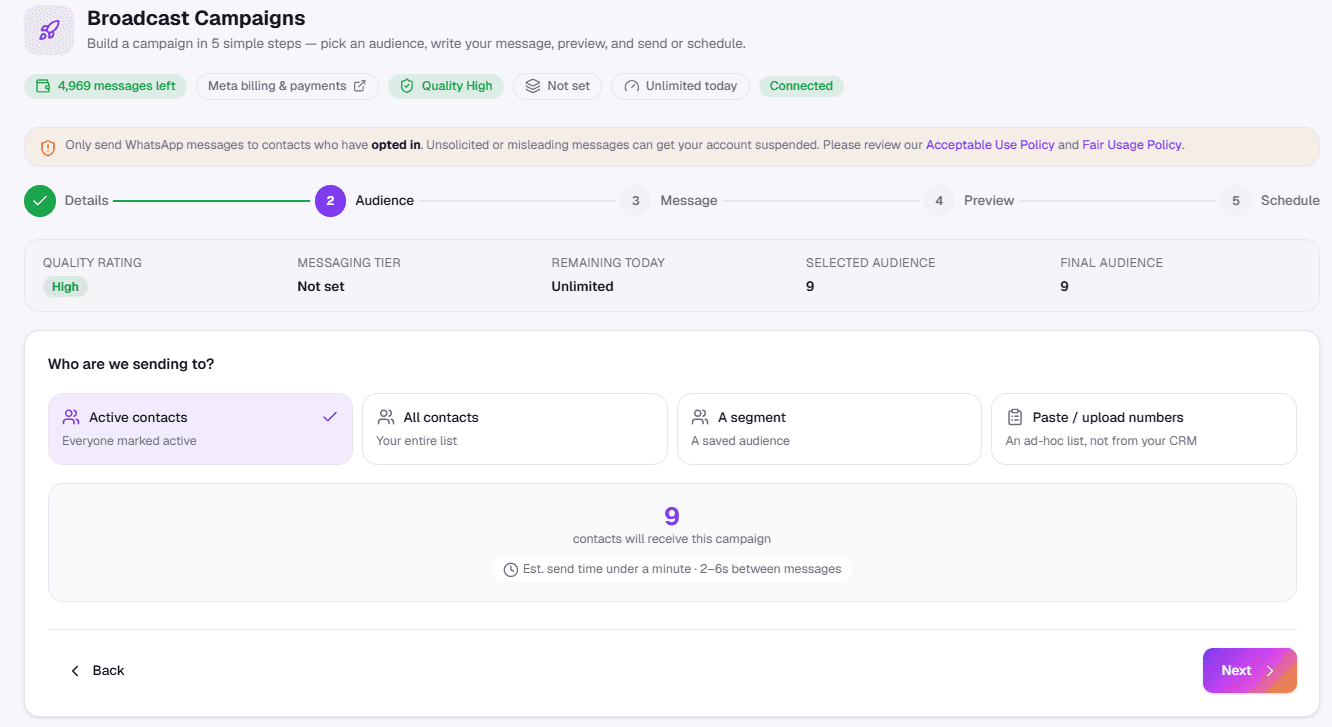
Campaigns → New. Pick the template, choose who it goes to, and send now or schedule it. Link clicks are tracked per recipient, so you see who opened what.
4
Build the chatbot
Flow Builder. Drag a flow: ask, branch, answer, hand to a human. It runs day and night and passes anything it cannot answer to the inbox.
Campaigns — the builder with a template selected and an audience chosen
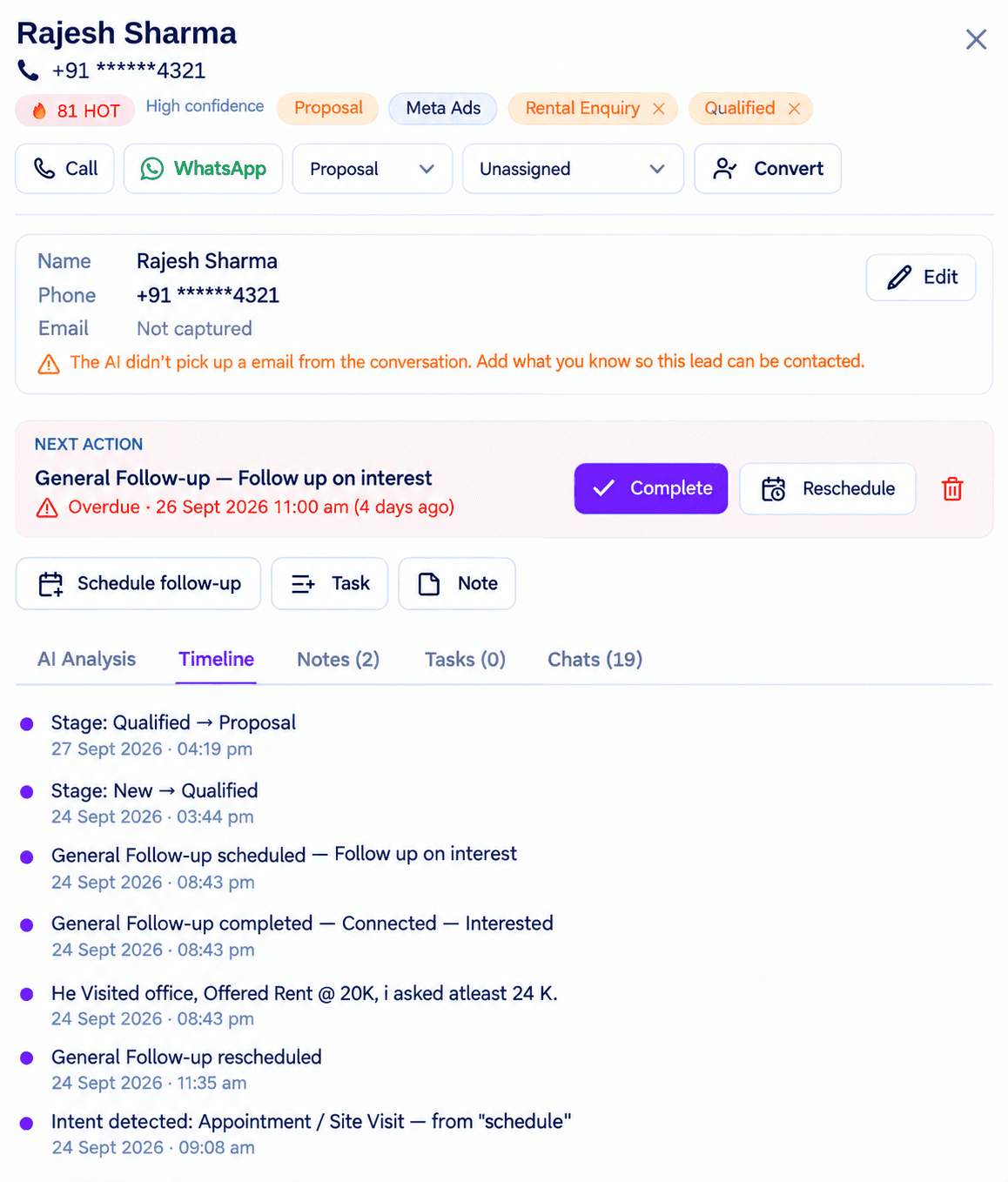
Leads from WhatsApp, Instagram, ads and your website arrive as records with a score attached, so the morning question stops being "who do I call?".
1
Let it fill
You do not import anything to start. A conversation, an ad lead or a form submission becomes a lead automatically, with the source recorded.
2
Read the score
Each lead is scored hot, warm or cold from what they said and did. Open a lead and the AI analysis explains why — it is a starting point, not a verdict.
3
Work My Day
My Day lists who to contact today and why: a follow-up due, a quote unanswered, a chat gone quiet.
4
Set follow-ups
Schedule the next touch from the lead drawer. Overdue ones surface rather than being forgotten.
CRM — a lead open, showing the score, timeline and follow-ups
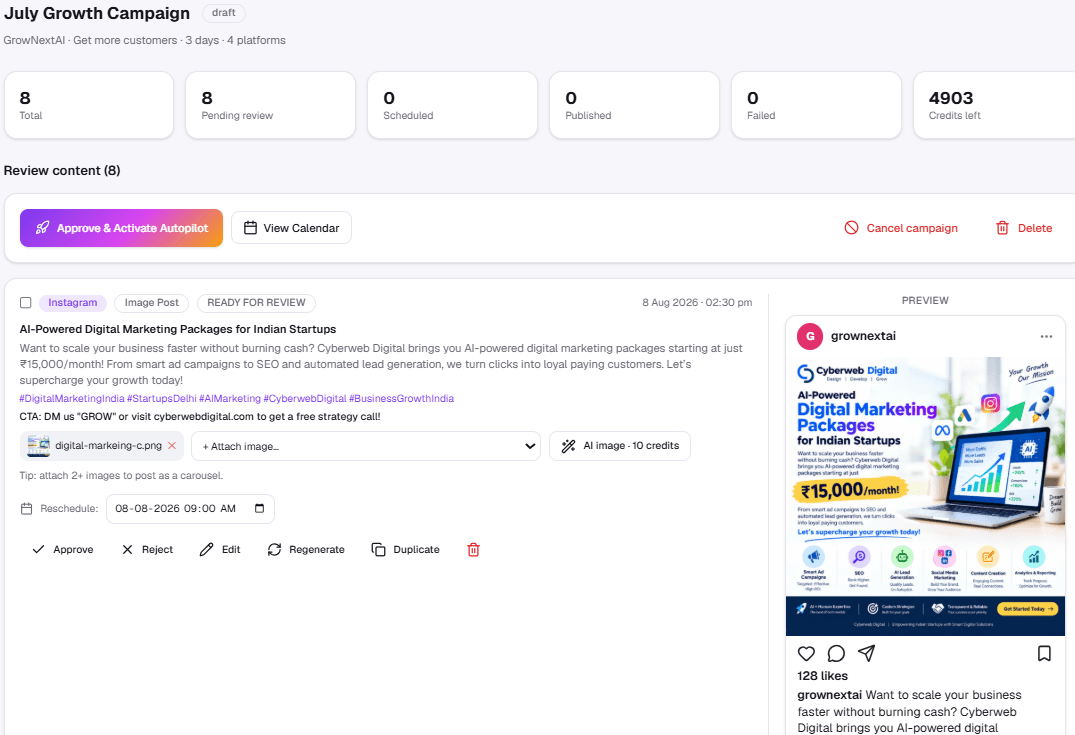
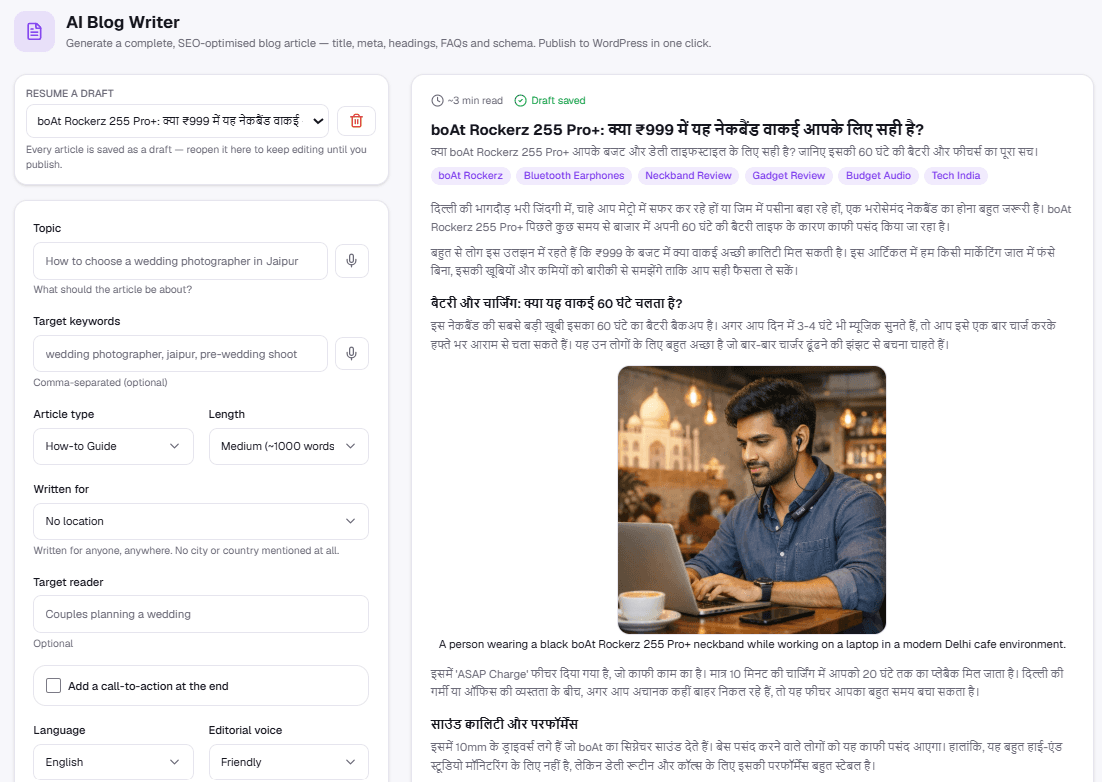
Campaign Autopilot plans a month of content, writes it in your voice, and publishes to Facebook, Instagram and your blog on a schedule. You approve; it posts.
1
Connect your accounts
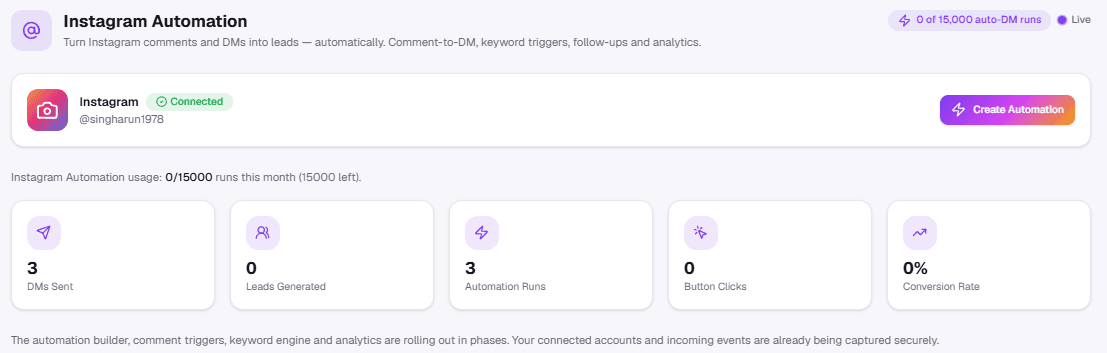
Social Accounts. Facebook Page and Instagram publishing run through your Meta connection; the blog can publish to WordPress, Shopify or the embed.
2
Teach it your business
Knowledge Base. Upload your brochures, price lists and FAQs. Everything written afterwards draws on them instead of guessing.
3
Run Autopilot
Campaign Autopilot → Plan. It proposes a month of posts. Edit what you want, reject what you don't, approve the rest.
4
Check the queue
Scheduled posts are visible before they go out. Nothing publishes that you have not seen.
Campaign Autopilot — a month of planned posts awaiting approval
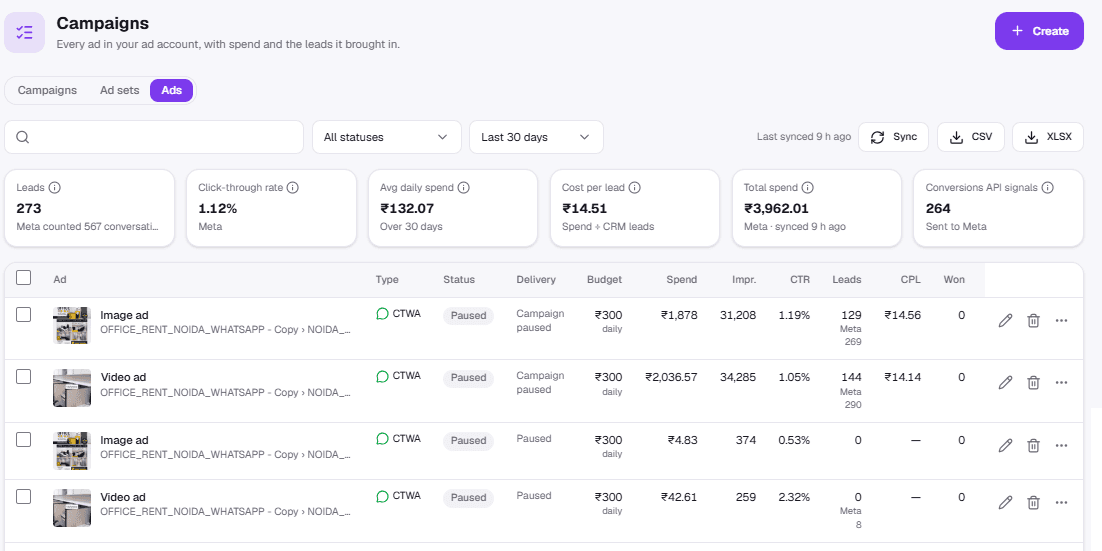
Create click-to-WhatsApp and lead-form ads, watch spend against results, and get told when something is wrong rather than finding out at the end of the month.
1
Connect the ad account
Ad performance → Connect ad account. This is a separate permission from Page posting on purpose: a business that only schedules posts is never asked for its advertising.
2
Create an ad
Create Ad. Pick the objective, write the copy or have it written, set the budget. Click-to-WhatsApp ads land straight in your inbox.
3
Watch the report
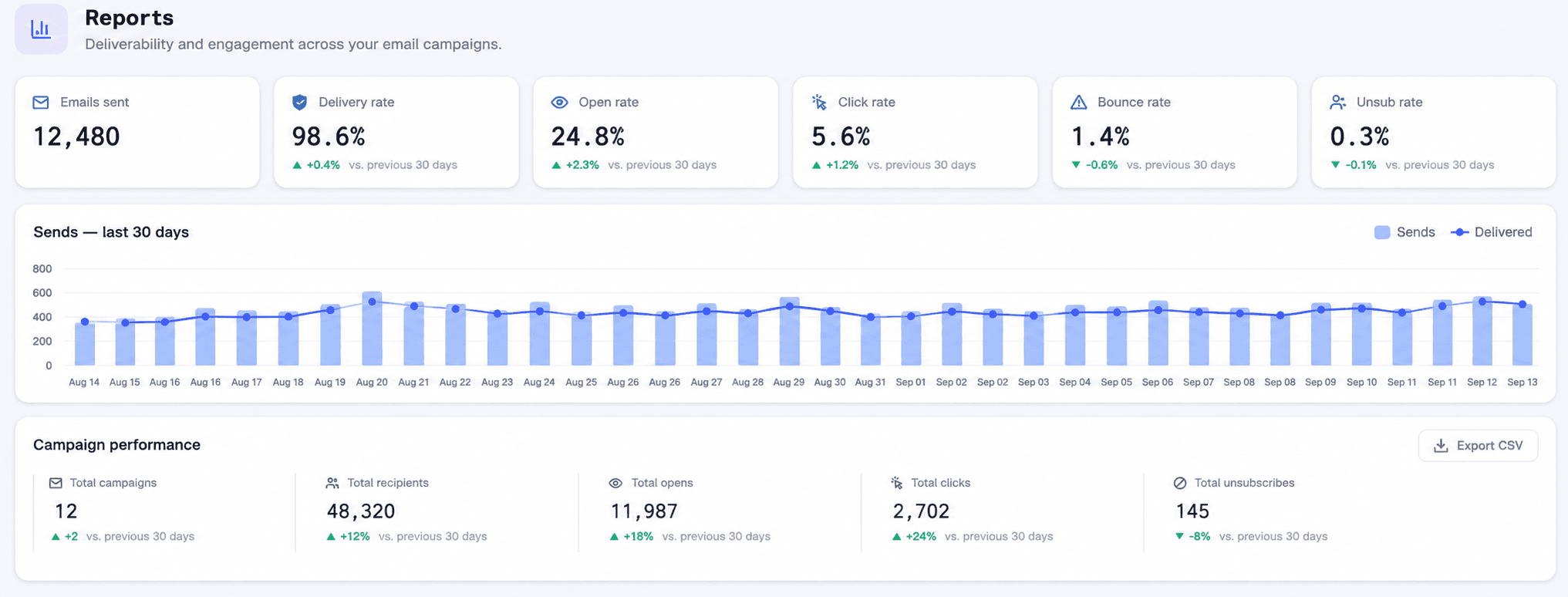
Overview shows spend, leads and cost per lead over time — not vanity metrics.
4
Let the rules run
Automated rules pause a set that overspends or stops delivering, so a bad day does not become a bad week.
Meta Ads — the performance report with spend and cost per lead
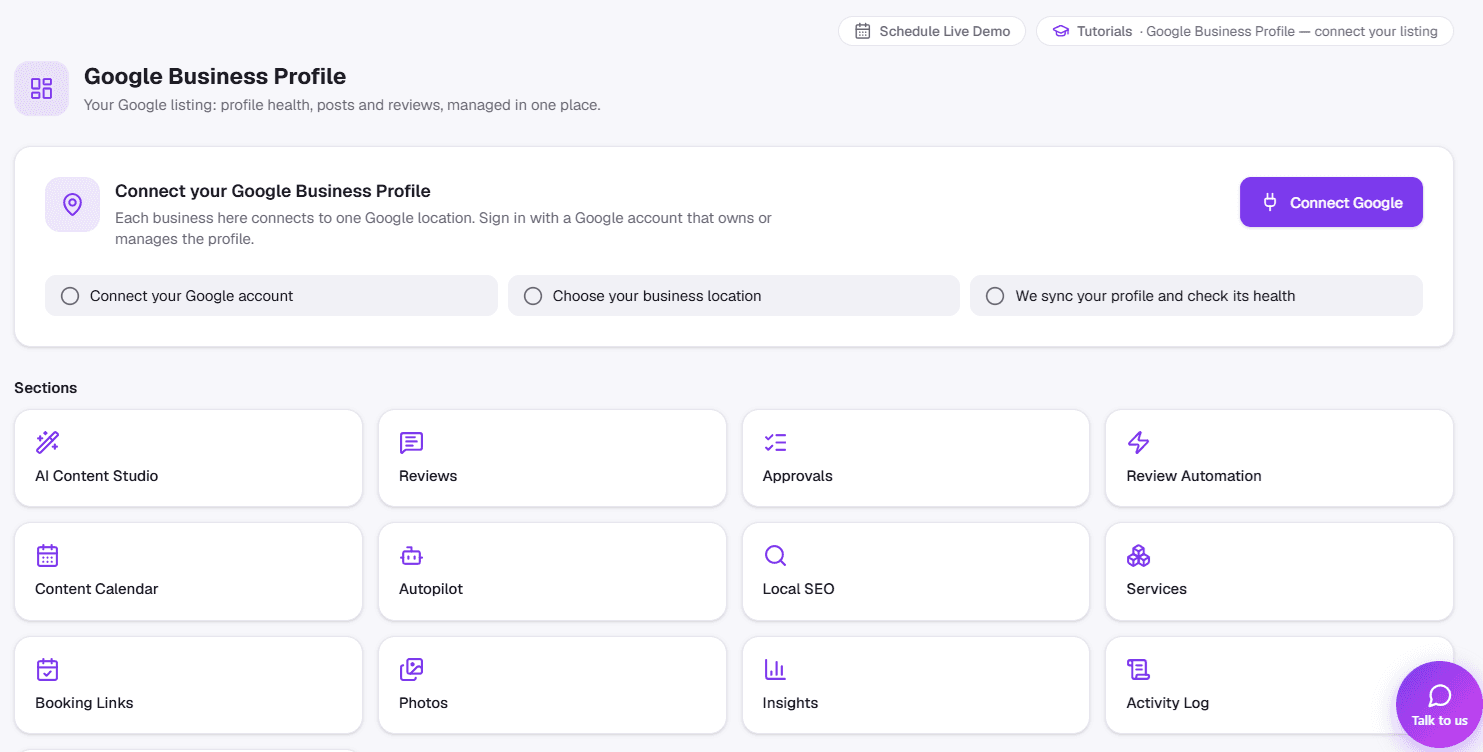
The listing people see in Google Search and Maps: posts, review replies, services, photos and booking links, managed from one place — with Google's own figures on who found you and what they did next.
1
Connect your listing
Google Business Profile → Settings → Connect Google. Sign in with the Google account that manages the profile and choose your location. Overview then shows how complete the listing is and what to fix first.
2
Post with AI Content Studio
Describe the update, offer or event; the AI writes it, you edit it. Add a photo — upload one, generate one, or pick from the Media Library — then publish now or schedule it.
3
Let Autopilot keep it active
Autopilot. Choose how often and what kinds of posts. It plans and writes them from your business details, and either publishes or waits for your approval.
4
Answer every review
Reviews. The AI reads each one and drafts a reply in your voice. Review Automation can post replies to happy customers by itself; anything risky waits in Approvals.
5
Fill in what Google ranks on
Local SEO lists the fixes that matter most and writes your business description. Services, Booking Links and Photos put the rest on your listing.
6
See what it brings
Insights. Profile views, calls, website clicks, direction requests and what people searched — Google's figures, kept apart from GrowNextAI's own.
Google Business Profile — the Overview: connect your listing, then every section in one place